RDVision Laser Cutting Control Software Operation Manual
6.4 Devices Connect
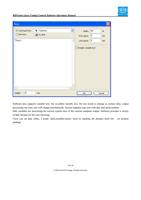
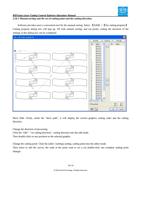
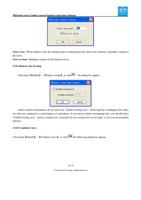
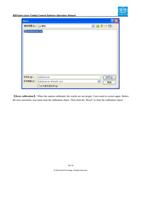
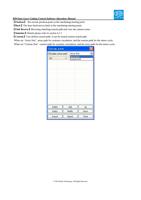
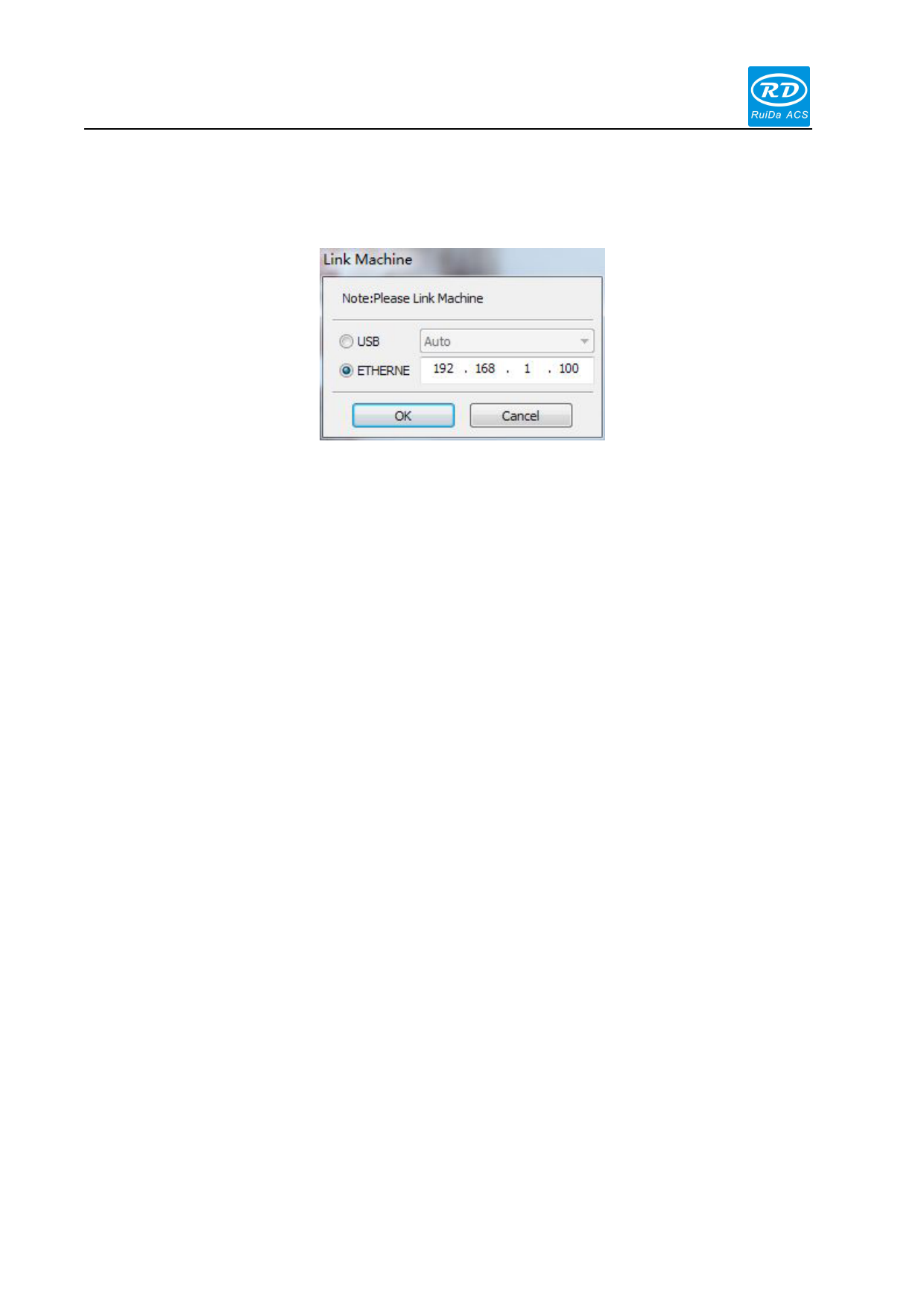
Appears follow dialog box:
There are two device connect ways: USB and Web. Click【Device port】button, then set the connection ways and
select connection port.
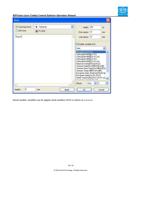
【USB】: If the computer is only connected to a laser device, you can set this option to automatically. The software
will automatically determine the connection interface to the device. When the computer is connected to more than
one laser equipment, you need to first click on the 【Device Port】 button. In the dialog box, click [Search] button.
The search is completed, the drop-down list will be displayed the connected currently device interface. User selects
the desired device interface, can output to the specified device.
【Web】: If the computer is only connected to a laser device, you can directly input IP address in the default device
IP. When the computer is connected to more than one laser equipment, similar to the 【USB】. Find the device has
been connected, and select corresponding IP address of the device from the drop-down list.
6.5 Control single-axis motion, back to zero
6.5.1 Manually control single-axis motion
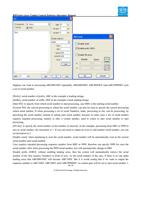
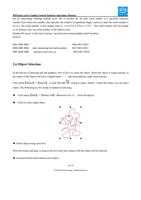
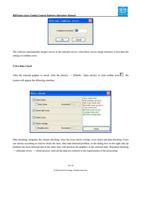
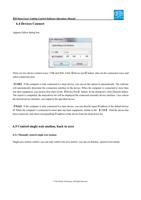
Single-axis motion control, you can only control one axis motion, you can set distance, speed of movement.
© 2016 Ruida Technology. All Rights Reserved.